How to Transfer GB WhatsApp to a New Phone Without Losing Chats?
Switching to a new phone does not mean you have to lose your GB WhatsApp chats, photos, videos, and important conversations. However, transferring GB WhatsApp is slightly different from moving the official WhatsApp app because GB WhatsApp uses a modified backup system.
The safest way to transfer GB WhatsApp to a new phone is to create a local backup, move the backup files to your new device, and restore your chats before using the app. This guide explains the complete process step by step.
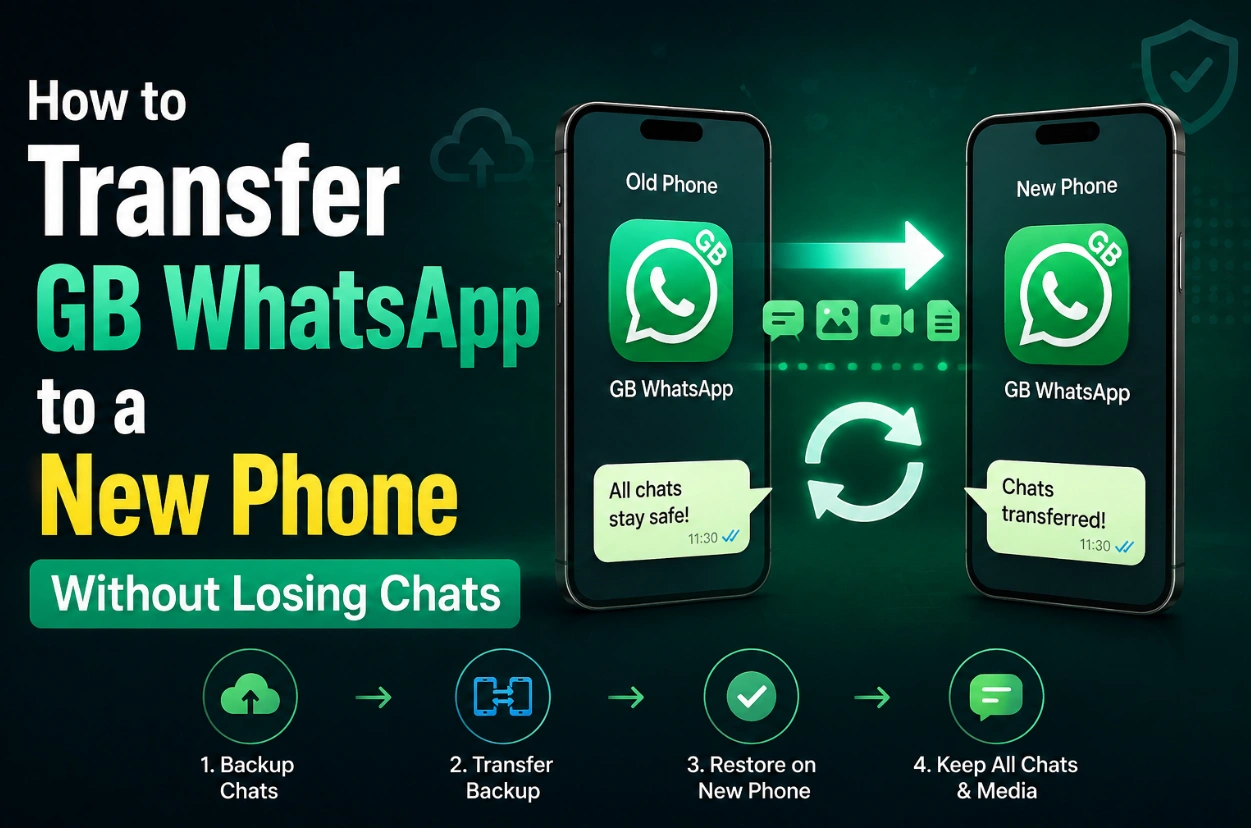
Can You Transfer GB WhatsApp to a New Phone?
Yes, you can transfer GB WhatsApp to a new Android phone while keeping your chats and media files. The process usually requires creating a local backup from your old phone and restoring it on the new device.
Unlike official WhatsApp, GB WhatsApp does not always support Google Drive backups because it is a third-party modified application. Most users need to use the built-in local backup feature instead.
Before starting the transfer, make sure:
- Both phones are Android devices
- You have enough storage space
- You remember your WhatsApp phone number
- The latest GB WhatsApp APK is installed on the new phone
- Your old phone still has access to your chats
Step 1: Create a GB WhatsApp Backup on Your Old Phone
First, create a complete backup of your conversations.
Open GB WhatsApp on your old phone and follow these steps:
- 1 Open GB WhatsApp
- 2 Tap the three-dot menu in the top-right corner
- 3 Select GB Settings
- 4 Go to Chats
- 5 Tap Chat Backup
- 6 Wait until the backup process finishes
The backup will save your chats and database files locally on your phone.
You should also make sure your media files are included, especially if you want to keep photos, videos, voice messages, and documents.
Step 2: Find the GB WhatsApp Backup Folder
After creating the backup, open your phone's file manager.
Look for the GB WhatsApp folder, usually located at:
Internal Storage > GBWhatsAppInternal Storage > Android > Media > com.gbwhatsappThe exact folder name may vary depending on the GB WhatsApp version.
The important folders usually include:
- Databases
- Media
- Backups
Copy the entire GB WhatsApp folder to your computer, SD card, or cloud storage.
Step 3: Transfer Backup Files to Your New Phone
Now move the backup folder to your new Android device.
You can transfer the files using:
- USB cable
- Computer
- SD card
- File transfer apps
- Cloud storage
Place the folder in the same location on your new phone.
For example:
Internal Storage > GBWhatsAppMake sure the folder name matches the one used by your GB WhatsApp version.
Step 4: Install GB WhatsApp on Your New Phone
Download and install GB WhatsApp on your new device.
Before opening the app:
- 1 Allow storage permissions
- 2 Confirm that the backup folder is already on your phone
- 3 Use the same phone number linked to your previous GB WhatsApp account
Installing the app before moving the backup files may prevent the restore option from appearing.
Step 5: Restore Your GB WhatsApp Chats
Open GB WhatsApp and verify your phone number.
The app should automatically detect your local backup.
When you see the restore option:
- 1 Tap Restore
- 2 Wait for the process to complete
- 3 Allow the app to restore media files
After restoration finishes, your previous chats should appear on your new phone.
Transfer GB WhatsApp Without Losing Media Files
Sometimes chats transfer successfully but photos and videos are missing. To avoid this problem:
- Copy the entire GB WhatsApp folder, not only the database file
- Keep the Media folder included
- Do not delete the old phone backup until everything works
- Make sure the new phone has enough storage
Large media libraries may take longer to restore.
Common Problems When Moving GB WhatsApp to a New Phone
GB WhatsApp Backup Not Detected
If the backup is not found:
- Check the folder location
- Confirm the folder name is correct
- Make sure permissions are enabled
- Reinstall GB WhatsApp and try again
Restore Option Does Not Appear
This usually happens when:
- The backup folder is in the wrong location
- The backup was created with a different GB WhatsApp version
- The database file is missing
Try moving the backup folder before opening the app again.
Chats Restored but Media Is Missing
This usually means only the database was transferred.
Copy the complete Media folder from the old phone.
Can You Transfer GB WhatsApp from Android to iPhone?
Currently, transferring GB WhatsApp directly from Android to iPhone is difficult because GB WhatsApp is an Android-based MOD application.
If you move to an iPhone, you usually need to switch to the official WhatsApp app and follow Apple's supported migration methods. GB WhatsApp backups are not directly compatible with iOS.
Tips Before Changing Phones
Before transferring GB WhatsApp:
- Create a fresh backup
- Save important photos separately
- Keep your old phone until the transfer is complete
- Avoid deleting GB WhatsApp before confirming restoration
- Use the same phone number
These steps help prevent accidental data loss.
Final Thoughts
Transferring GB WhatsApp to a new phone is possible if you properly back up and move your local files. The key step is copying the complete GB WhatsApp folder, including chats and media, before installing the app on your new device.
Because GB WhatsApp is a modified application, backup methods can vary between versions. Always keep an additional copy of important conversations before switching devices.
FAQ
Does GB WhatsApp have Google Drive backup?
Most GB WhatsApp versions rely on local backups instead of official Google Drive backup support.
Will I lose my chats when changing phones?
No, if you create and restore a proper local backup, your chats can usually be transferred successfully.
Can I transfer GB WhatsApp to another Android phone?
Yes. Android-to-Android transfer is the easiest method using local backup files.
Do I need the same phone number?
Yes. You should verify GB WhatsApp with the same number used on your previous account.