Download GB WhatsApp for PC (Windows 7, 8, 10 & 11)
GB WhatsApp does not have a native Windows desktop installer, but you can run the Android APK on a PC with a trusted Android emulator. This guide explains the practical Windows 7, 8, 10, and 11 workflow, including system requirements, installation steps, account linking, and common fixes.
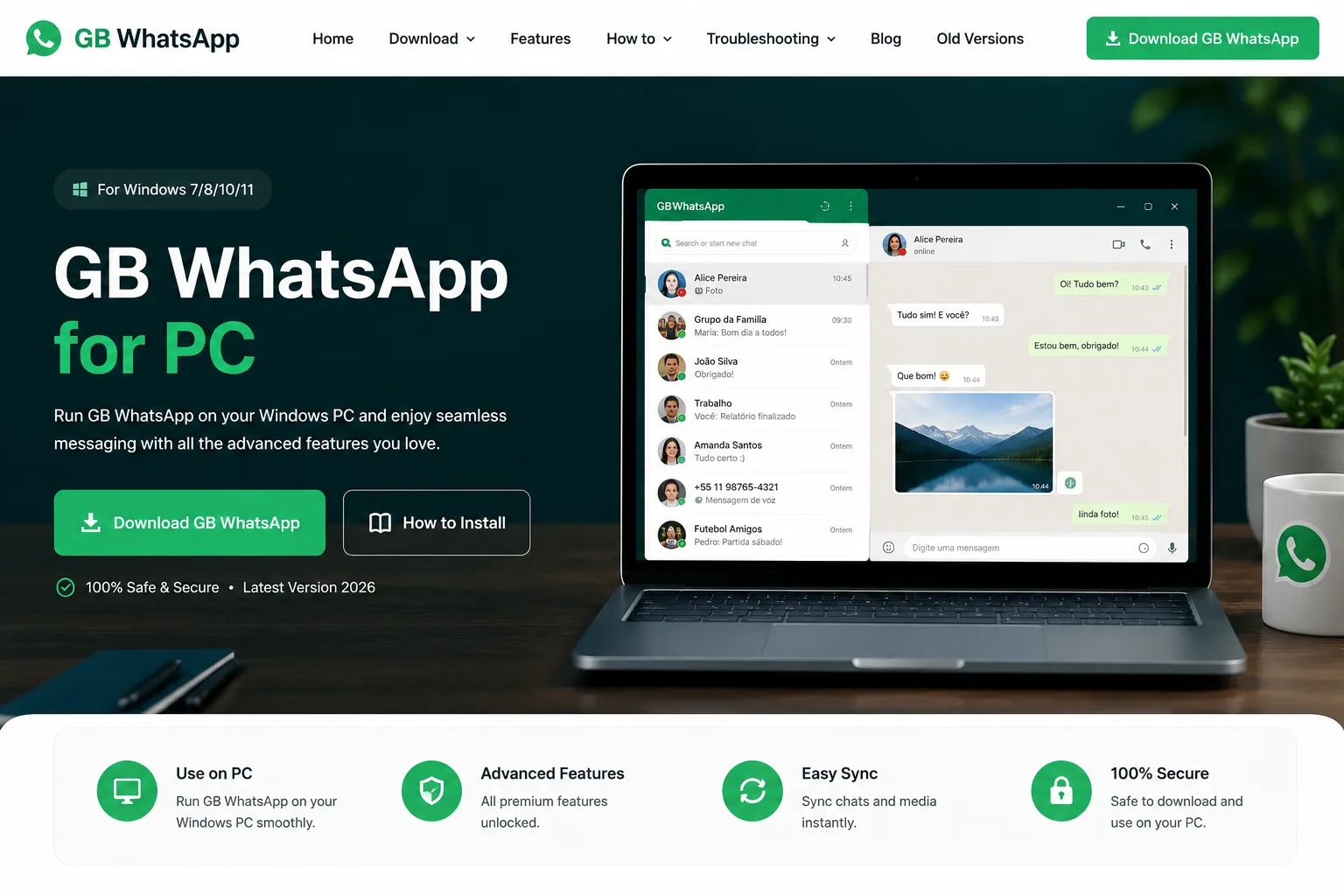
GB WhatsApp is an unofficial Android mod. Use one trusted download source, keep chat backups, and do not enter account details into unfamiliar screens.
What Is GB WhatsApp for PC?
GB WhatsApp for PC usually means using the Android version of GB WhatsApp inside an emulator such as BlueStacks or LDPlayer. The emulator creates a virtual Android phone on your Windows computer, so the APK can install and run in a familiar mobile environment.
This is different from a native Windows app. There is no official GB WhatsApp Windows executable from Meta or the WhatsApp team. If a site offers an EXE that claims to be a direct GB WhatsApp PC installer, treat it carefully because it may be a repackaged emulator, an adware bundle, or a file that has nothing to do with the Android APK.
Can You Use GB WhatsApp on Windows?
Yes, you can use it on Windows through an emulator if your computer meets the basic requirements and the APK is compatible with the Android version inside that emulator. Windows 10 and Windows 11 usually provide the smoothest experience, while Windows 7 and Windows 8 may require older emulator releases or additional graphics drivers.
You can also use a linked-device workflow when your mobile installation supports web or desktop linking. That option does not install the APK on Windows, but it can be more convenient if your goal is only to type messages from a keyboard.
System Requirements
Before downloading anything, compare your PC with these practical minimums. More memory and an SSD will make the emulator feel much better.
| Item | Minimum recommendation |
|---|---|
| Operating system | Windows 7, 8, 10, or 11 |
| Processor | Intel or AMD dual-core CPU |
| Memory | 4 GB RAM minimum, 8 GB recommended |
| Storage | 5 GB free space for emulator and app data |
| Graphics | Updated graphics driver with virtualization enabled if available |
| Network | Stable internet connection for sign-in and syncing |
How to Download GB WhatsApp for PC
Start by downloading the Android APK from a download page you trust. A PC guide should not replace basic file checks: confirm the version name, avoid duplicate download buttons from ads, and keep the APK in a folder you can find again.
After the APK is saved, download the emulator from its official website. Install the emulator first, open it, complete its initial Android setup, and only then drag the APK into the emulator window or use the emulator APK install button.
How to Install GB WhatsApp Using BlueStacks
If BlueStacks feels slow, open its settings and increase memory or CPU allocation within your PC limits. Also check whether hardware virtualization is enabled in BIOS. Many installation failures on PC are actually emulator performance problems, not APK problems.
- 1 Install BlueStacks from the official BlueStacks website.
- 2 Open BlueStacks and wait for the Android home screen to load fully.
- 3 Use the APK install button or drag the GB WhatsApp APK into the emulator.
- 4 Wait for the Android package installer to finish.
- 5 Open GB WhatsApp, review permissions, and continue only if the app name and icon match what you expected.
How to Install GB WhatsApp Using LDPlayer
LDPlayer is often a good option on older PCs because it offers straightforward Android versions and simple performance settings. The best emulator for you depends on graphics drivers, RAM, and how many other apps you run at the same time.
- 1 Install LDPlayer from the official LDPlayer website.
- 2 Launch the emulator and finish the initial setup.
- 3 Click the APK icon in the side toolbar and choose your downloaded GB WhatsApp file.
- 4 Let LDPlayer install the package, then open it from the emulator home screen.
- 5 If the install fails, restart LDPlayer and try a fresh APK download before changing advanced settings.
How to Link Your Existing Account
If you already use GB WhatsApp on a phone and only need PC access, check whether your build supports linked devices or web access. When it does, open the linked device option on your phone, scan the QR code on the web or desktop screen, and keep your phone connected during the first sync.
If you install the APK inside an emulator and register the same number there, your phone session may be affected. Back up chats first and read every prompt. Do not uninstall your current app until you know where your local backup is stored.
Common Installation Problems
- Parse error: the APK may be incomplete, corrupted, or incompatible with the emulator Android version.
- App not installed: remove conflicting packages inside the emulator and restart it.
- Verification code does not arrive: wait before requesting more codes and confirm the phone number format.
- Emulator black screen: update graphics drivers or switch the emulator rendering mode.
- Slow performance: close other apps, increase allocated RAM, or try another emulator.
Frequently Asked Questions
Is GB WhatsApp for PC an official desktop app?
No. It is the Android APK running through an emulator or a linked-device workflow.
Can I use it on Windows 11?
Yes, if your emulator supports your PC and the APK can install inside that Android environment.
Do I need BlueStacks specifically?
No. BlueStacks and LDPlayer are common choices, but any compatible Android emulator can work.
Will my phone chats move to PC automatically?
Not always. Treat chat backup and restore as a separate step before changing devices or clients.